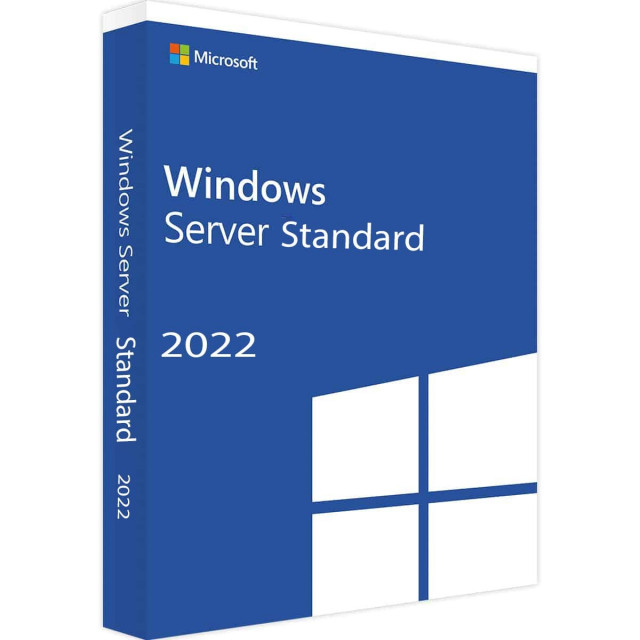
Windows Server 2022 22H2 Build 225110 AIO x64 Multilingual-35 PreActivated May 2022
iNFO:
Medicine included
size:4.4 GB
format:rar/exe/iso
4 In 1 | 35 Languages | Untouched | PreActivated
Editions Included:
- Windows Server 2022 Standard x64
- Windows Server 2022 Standard (Desktop Experience) x64
- Windows Server 2022 Datacenter x64
- Windows Server 2022 Datacenter (Desktop Experience) x64
Languages:
- Arabic (Saudi Arabia)
- Bulgarian (Bulgaria)
- Czech (Czech Republic)
- Danish (Denmark)
- German (Germany)
- Greek (Greece)
- English (United States)
- Spanish (Spain)
- Estonian (Estonia)
- Finnish (Finland)
- French (France)
- Hebrew (Israel)
- Croatian (Croatia)
- Hungarian (Hungary)
- Italian (Italy)
- Japanese (Japan)
- Korean (Korea)
- Lithuanian (Lithuania)
- Latvian (Latvia)
- Norwegian (Norway)
- Dutch (Netherlands)
- Polish (Poland)
- Portuguese (Brazil)
- Portuguese (Portugal)
- Romanian (Romania)
- Russian (Russia)
- Slovak (Slovakia)
- Slovenian (Slovenia)
- Serbian (Latin, Serbia)
- Swedish (Sweden)
- Thai (Thailand)
- Turkish (Turkey)
- Ukrainian (Ukraine)
- Chinese (Simplified, China)
- Chinese (Taiwan)
Operating System:
- Processor: 1 gigahertz (GHz) or faster.
- RAM: 2 gigabyte (GB).
- Free space on hard disk: 32 gigabytes (GB).
Install Notes:
- Starting installer in PC (via USB)
- Follow the steps given below:
- Download the Windows ISO image file.
- Install a USB bootable creation software (such as Rufus) on your Windows computer.
- Plug in a USB flash drive (at least 8GB of free space) to your computer.
- Open the USB bootable creation software, and select the ISO image file of Windows, and start the process.
- Plug the bootable USB into a system where you want to install Windows.
- Restart the computer.
- Press the boot device menu key and select USB to boot first.
- Select USB device and start the Windows installer.
***************************************************************
Hinweise zur Installation:
- Starten des Installationsprogramms auf dem PC (über USB)
- Befolgen Sie die unten angegebenen Schritte:
- Laden Sie die Windows-ISO-Image-Datei herunter.
- Installieren Sie eine Software zur Erstellung von USB-Startdateien (z. B. Rufus) auf Ihrem Windows-Computer.
- Schließen Sie ein USB-Flash-Laufwerk (mit mindestens 8 GB freiem Speicherplatz) an Ihren Computer an.
- Öffnen Sie die Software zur Erstellung von USB-Startdateien, wählen Sie die ISO-Image-Datei von Windows aus, und starten Sie den Vorgang.
- Stecken Sie den bootfähigen USB-Stick in ein System, auf dem Sie Windows installieren möchten.
- Starten Sie den Computer neu.
- Drücken Sie die Menütaste für das Boot-Gerät und wählen Sie USB, um zuerst zu booten.
- Wählen Sie das USB-Gerät aus und starten Sie das Windows-Installationsprogramm.
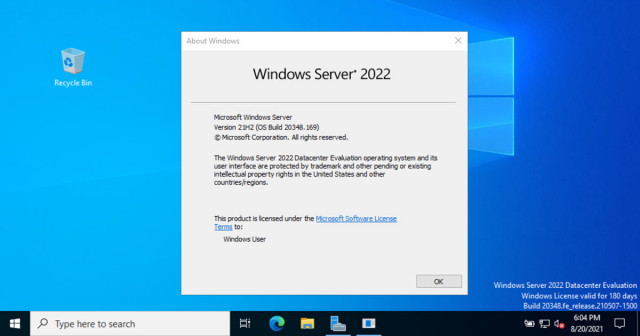
Screenshots
Download : Nitroflare / Rapidgator
https://nitroflare.com/view/FA5D1AE22649E9E/CKN-SOFT-WS2022PRE.ACTIVATMAY22.part1.rar
https://nitroflare.com/view/3FDFE6170DA0566/CKN-SOFT-WS2022PRE.ACTIVATMAY22.part2.rar
https://nitroflare.com/view/EEAB02B5FD9EB40/CKN-SOFT-WS2022PRE.ACTIVATMAY22.part3.rar
https://nitroflare.com/view/F7D3CA0DD57B925/CKN-SOFT-WS2022PRE.ACTIVATMAY22.part4.rar


https://rapidgator.net/file/1ea78a09d85a11e10ac0798458a7b7dd
https://rapidgator.net/file/d095b63c58efca396898afe5417fb945
https://rapidgator.net/file/baa4b02e46629e68508e04f8b15f1b4f
https://rapidgator.net/file/067c3e1c1f8de1aa9c47205646653580

 Cantinho Satkeys
